Command Line and DelftBlue Basics
Joffrey Wallaart & Dennis Palagin
December 2025
Course goals
Using the BASH command line, you can:- Work with files and make minor edits
- Transfer your files to other systems
- Create and run scripts on DelftBlue
Course contents
- Linux
- Folders and files
- Editing files
- Redirecting output
- Installing local packages
- Permissions
- Remote Access
- Scripting
- Run your stuff on DelftBlue
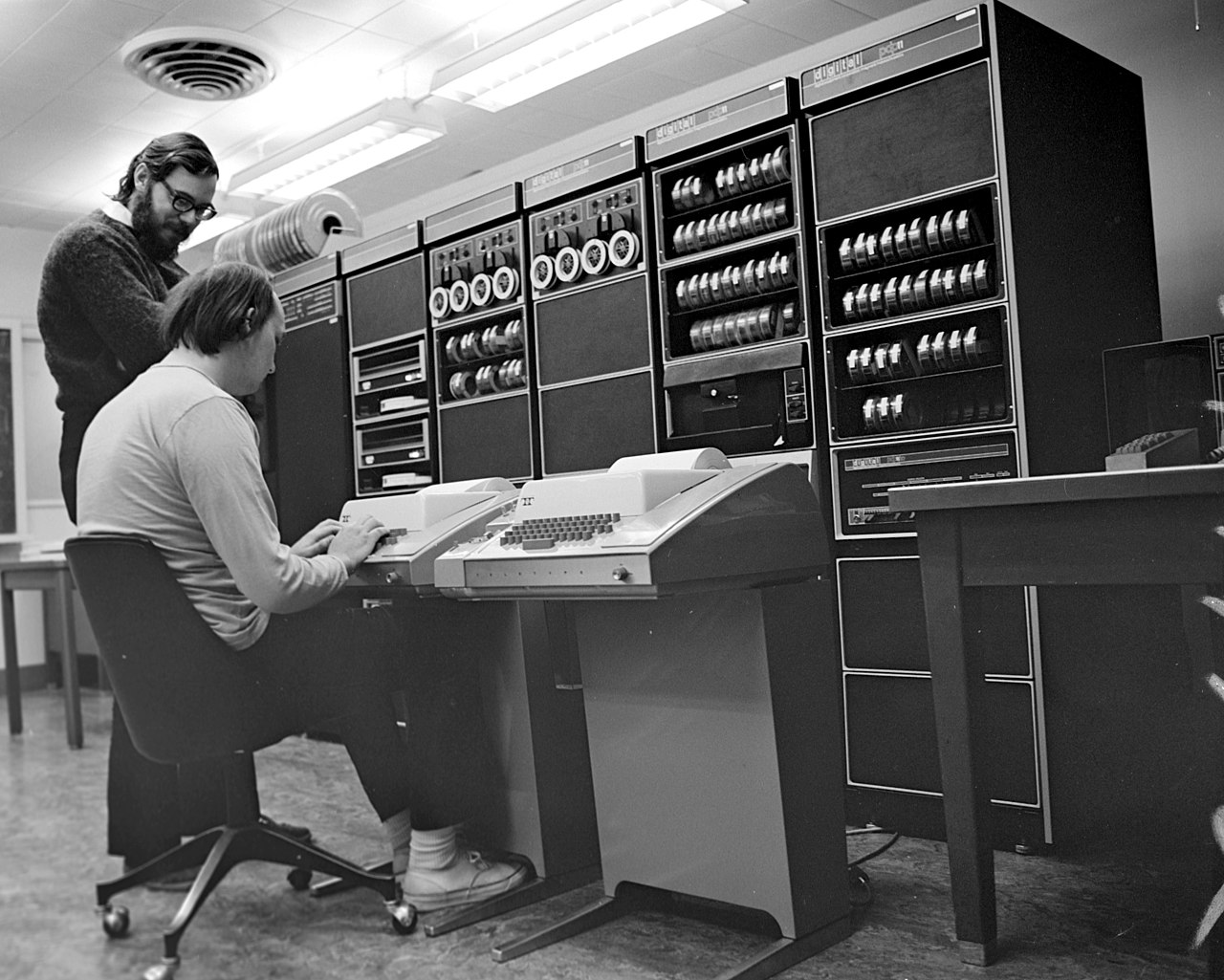
Dennis Ritchie and Ken Thompson created UNIX in 1969
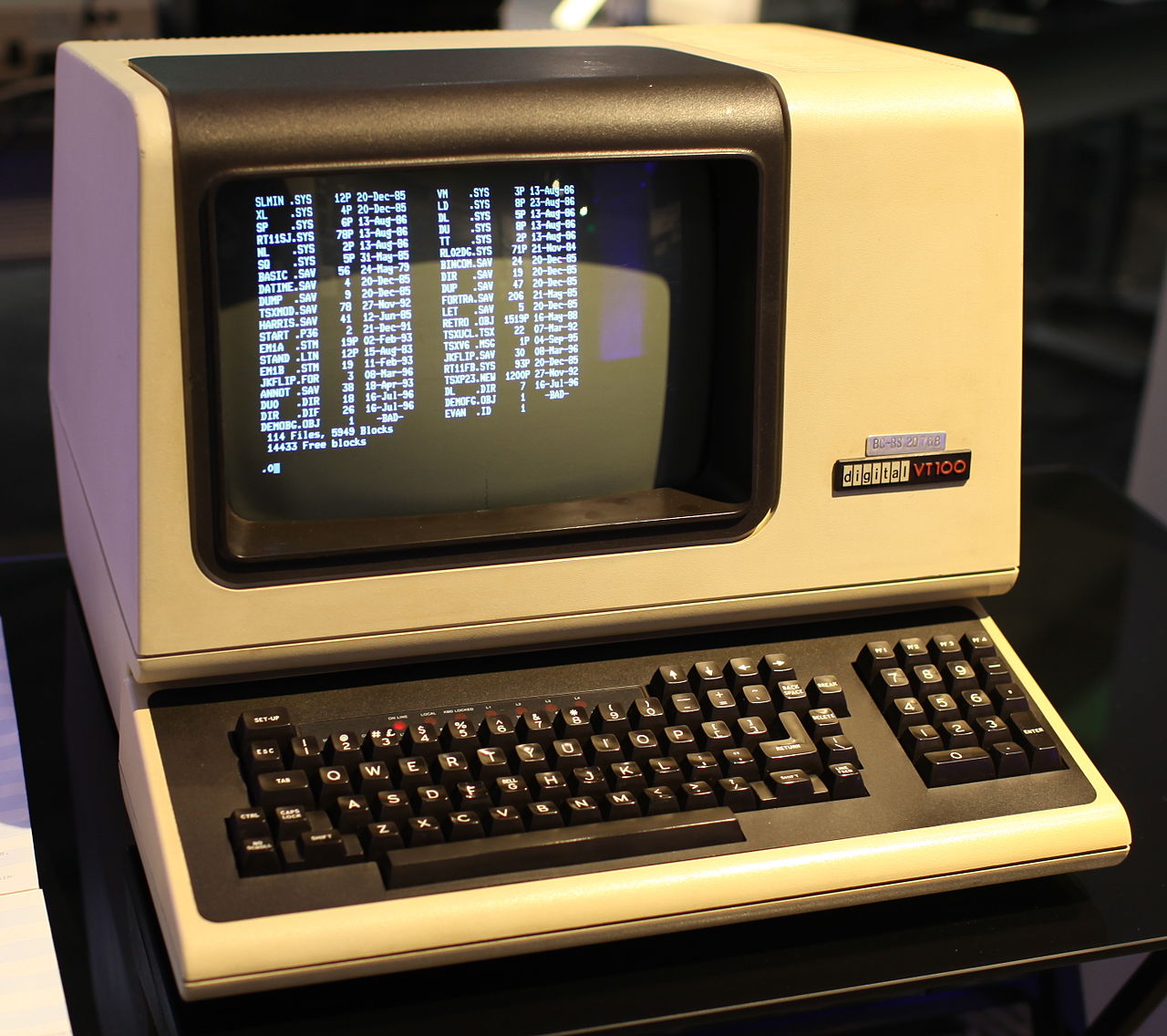
Digital vt100, 1978

Linux released in 1991
Good News!
You're already using Linux
What is running Linux?

Supercomputers
Social Media
Cloud services
What is running Linux?

New York Stock Exchange
What is running Linux?

Shinkansen bullet train
What is running Linux?

Smart TVs
What is running Linux?

Android smartphones
est. 3.3 bn users
What should be running Linux?
Your computer!
Housekeeping
Folder == Directory
CLI == Terminal == Console == Shell == Prompt
The command prompt
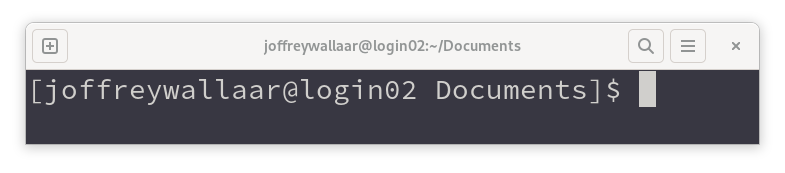
username @hostname location cursor
Your first command
pwd
"Present working directory"
This command shows your current location in the filesystem.
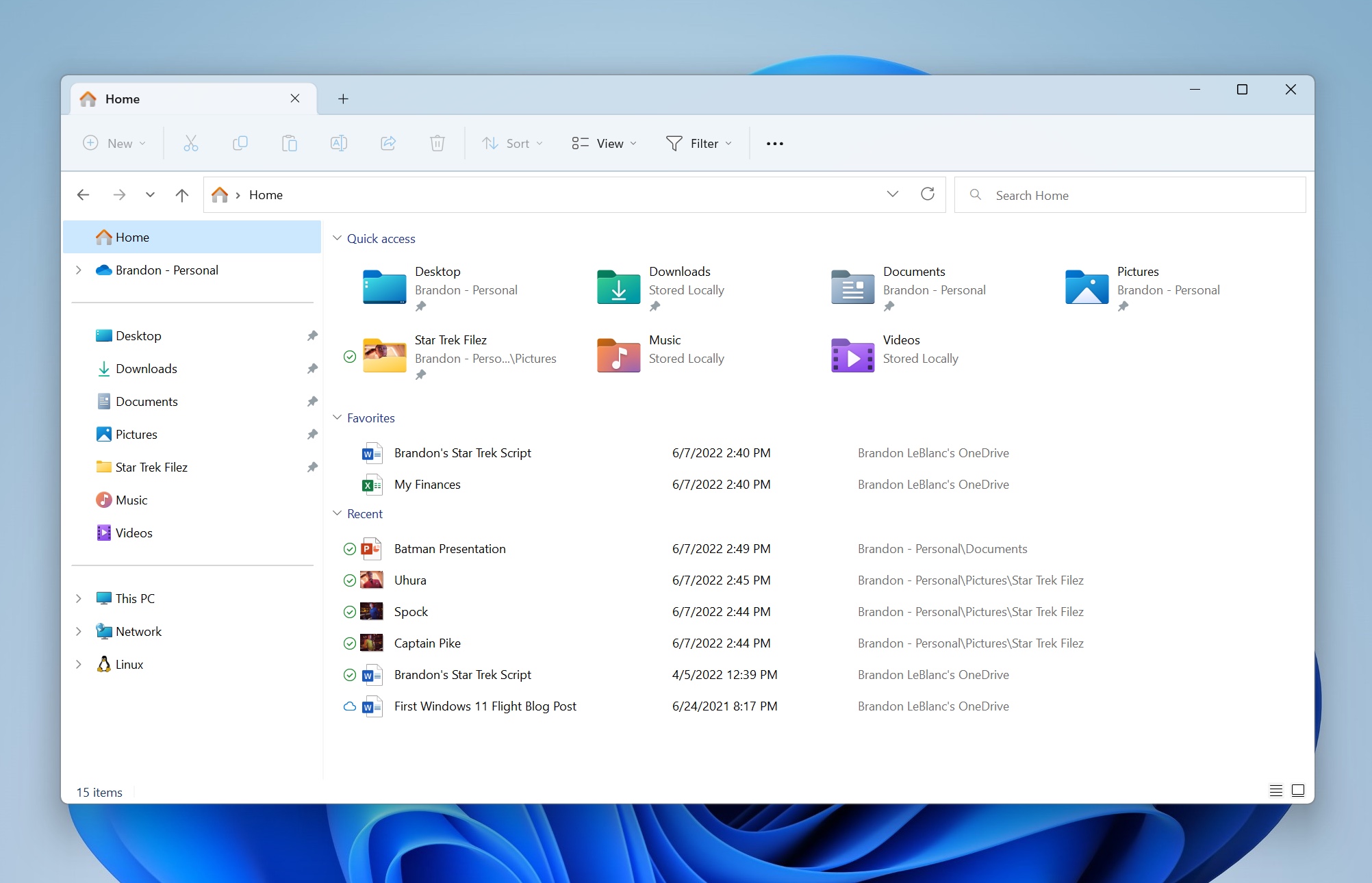
Basic navigation
The list command shows the contents of the current directory
ls
To move into a directory use Change Directory
cd Documents
Pro tip: Use the [tab] key for autocompletion.
Filesystem shortcuts
| ~ (or $HOME) | Your home directory |
| / | The root directory |
| . | The current directory |
| .. | One directory up |
Exercise:
- Try to navigate the filesystem using cd and ls.
- Don't forget [tab] for autocompletion.
- In, ~/Documents, try to find a file named the_chaos.txt.
- Try to figure out what 'cd -' does.
Options
The list command, but with an option to make it behave differently
ls -l
Options can sometimes be written in full. This is particularly useful for scripts
ls -l --all
Arguments
You can also pass an argument to commands
This shows the contents of the 'Documents' folder:
ls ~/Documents
You've been using arguments before:
cd Documents
Sometimes an option can also take an argument:
ls -l --sort=extension
Where 'extension' is the argument for the option --sort.
Getting Help
Almost all programs have a help option that will show you the proper syntax and most common options.
ls --help
for more in-depth information pull up the manual:
man ls
Exercise:
- Use the help option to construct the command to list all files in the ~/Documents directory, sorted by file size, smallest first, using the long list format.
ls -a -S -r -l /home/cli101/Documents
ls --all --sort=size --reverse -l $HOME/Documents
ls -aSrl ~/Documents
Hidden files, or dotfiles
Files and folders that start with a dot are hidden.
These contain settings or user specific (local) programs and libraries. Examples are .bashrc, .profile and the .config and .local subfolders. These will become very important when you want to customize your experience. For now, they are better left alone.
Git also uses a .git subfolder in your project root to do its magic. Did you know that git was created to keep track of development on the Linux kernel?
Exploring file contents
| cat | Simply print file contents to the terminal Good for scripts or short files |
| less | More options including search By default, man uses less to output text |
              cat ${filename}
              less ${filename}
Exercise:
- Use less to open the_chaos.txt. Use search [/] to find 'croquet'
- try searching for 'and' and press [enter]
- use [n] and [N]. what does this do?
file operations
| cp ${source} ${target} | copy |
| mv ${source} ${target} | move or rename |
| mkdir ${directory} | make a directory |
| rm ${filename} | remove a file |
| rm -r ${directory} | remove a directory '-r' for recursive |
the last command will ask for confirmation for deletion of every file inside the directory. this can be remedied by using 'rm -rf'. be careful though: there is no trashbin to restore deleted files.
exercise
- play around with copying and deleting files in the ~/Music folder
- rename all files with spaces in the filename
- create a classical_music subfolder and copy some files to it
- then delete the folder
- finally, get rid of the whole music folder with rm -rf!
editing files with

vi commands
from normal mode
| :w | write to disk |
| :q | quit |
| :wq | write and quit |
| [i] | insert mode |
| [u] | undo |
| [esc] | back to normal mode |
| [/] | search |
| :set number | display line numbers |
exercise
- run fixme.py in the ~/exercises/vim/ folder
- bugfix it using vim
            cd $HOME/Exercises/vim/

            ./fixme.py # run the script from the local directory

            vim fixme.py # run vim with the script name as argument
bug? enroll in wi4260tu to learn more!
redirecting output
| ${command} > ${filename} | redirect output to a new file |
| ${command} >> ${filename} | append output to a file |
| ${command} | ${command b} | use output as input for command b |
exercise:
- use cat to combine the avocado files
- then, pipe that list to grep to grep to find all the entries there are from Albany.
- then, use wc to find out how many entries there are
- use --help or man to find the correct options and syntax
installing packages in your home directory
for simplicity, we will use a language specific package manager many of you will be somewhat familiar with. python's pip will notice you are not a sysadmin and will default to installing to the .local folder in your $home.
install the ase package, we will need that in the next slide
pip install ase
exercise:
- try to find the newly installed libraries in ~/.local
permissions
file permissions allow you to control who has what kind of access to your files. to control them you have to set mode bits.
in a nutshell, there are three levels of ownership:
- user
- group
- other
- all
remember u,g,o and a. there are also three types of permissions:
- read
- write
- execute
remember r,w and x
set the mode bits
remember u,g,o (and a) and r,w,x. the command to change these is called change mode.
              chmod
              chmod u+x ${filename}
              chmod go-wx ${filename}
              chmod a+rwx ${filename} # probably not a good idea
Exercise:
- Go to ~/Exercises/permissions/
- Try to make gen_mol_folders.py executable and run it directly using ./gen_mol_folders.py
remote access with
try to log in to delftblue using your netid:
ssh -l ${netid} login.delftblue.tudelft.nl
there is a shorthand, but this is still a lot to type everytime you log in:
ssh ${netid}@login.delftblue.tudelft.nl
configure the client to make this a lot more user friendly.
use vim to create ~/.ssh/config:
            mkdir ~/.ssh
            vim ~/.ssh/config
then add:
            host delftblue
            user netid
            hostname login.delftblue.tudelft.nl
now try:
ssh delftblue
this works for all programs that use ssh, not just command line
Life gets better with ssh keys
              # passphrase recommended, but skip for course
              ssh-keygen

              # install public key (or lock) on server
              ssh-copy-id delftblue
              # at home: ssh-copy-id bastion
Now:
ssh delftblue
These often also work for other applications
Transfer files with scp
For now, just copy the delftblue_examples folder to DelftBlue. The syntax is similar to cp, but can also target remote systems
scp -r ~/Exercises/ssh/delftblue_examples delftblue:~/
Now run the same command again. Can you tell why rsync is so smart?