Introduction to HPC
From Linux command line basics to running jobs with SLURM
February 2026
Course goals
Using the BASH command line interpreter, you can:
Work with files and make perform minor edits
Differentiate between a local and global environment
Interact with, and transfer files to remote systems
Create and run scripts on DelftBlue
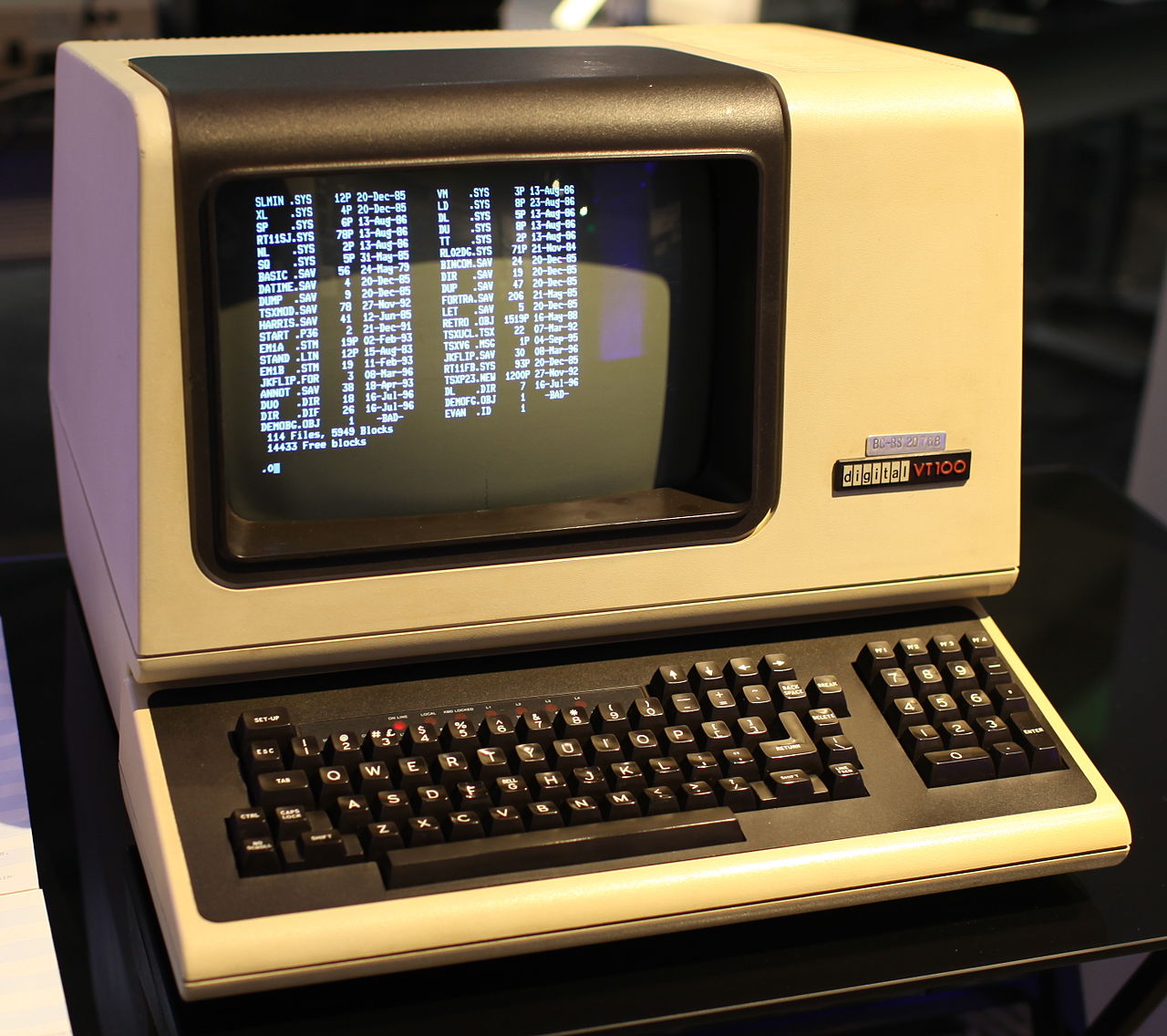
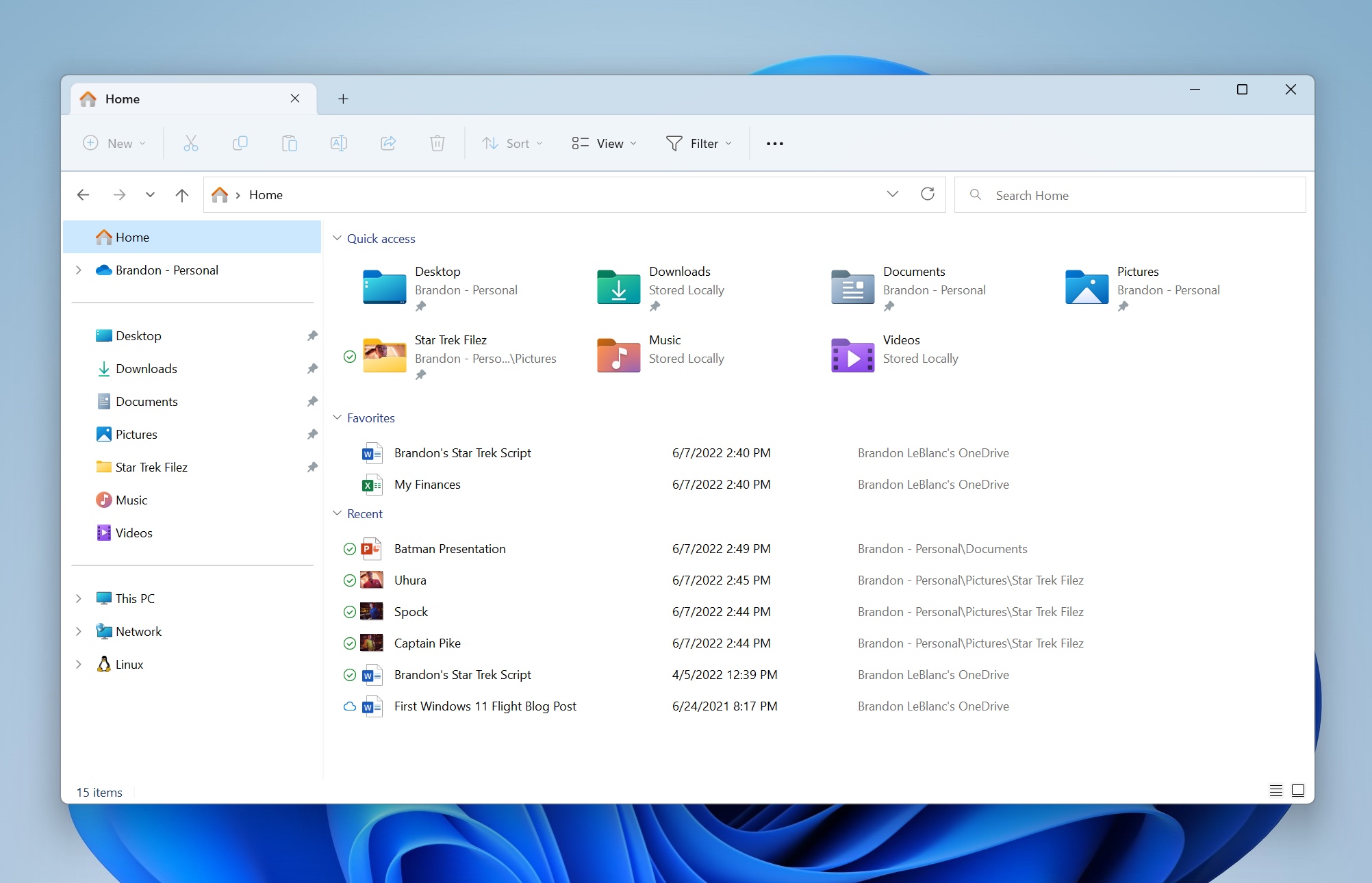
You’re already using linux
What should be running Linux?
https://cli101.cse.tudelft.nl/slides.html
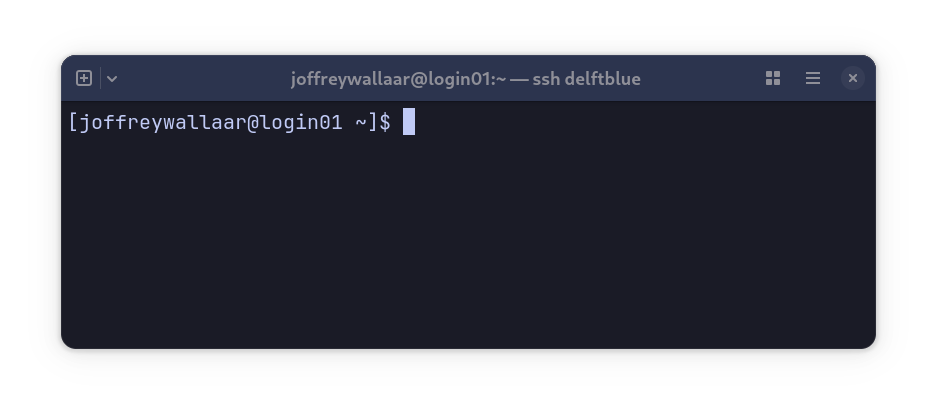
The command prompt
The DelftBlue command prompt
The command prompt is the part of the part of the screen where you can type, the part that ‘prompts’ you to issue a command. It can be fully customized via the PS1 environment variable, but most Linux distributions follow the same general layout:
user @ hostname : location in filesystem $ cursor
Your first command
“Present Working Directory”
This command shows your current location in the filesystem.
Basic Navigation
The list command shows the contents of the current directory.
To move into a directory use Change Directory
Pro tip: use the Tab key for autocompletion.
Filesystem shortcuts
Filesystem shortcuts
~ or $HOMEYour home directory
/The root directory
.The current directory
..One directory up
Exercise - Navigation
Try to navigate the filestystem using cd and ls .
Don’t forget Tab for autocompletion.
In navigation, try to find a file named the_chaos.txt.
Try to figure out what cd - does.
Exercise - Environment variables
You’ve seen the $HOME variable. You can ‘print’ this using the echo command:
Try $USER, $RANDOM, $SECONDS.
You can see a list of all variables with the command env.
You can set or change a variable with the syntax:
export MY_SECRET = "I_<3_Penguins" # No spaces around the assignment operator.
Set your own variable.
Change the variable PS1. What happened?
Start a new shell/terminal session.
In the new shell, try to reference the variable you came up with yourself.
Options
The ls command, but with an option to make it behave differently.
Options can be combined and often written in full.
How does --all change the behaviour of ls?
Whenever you write a bash script, it is recommended to use fully written out version. This makes your scripts a lot more readable. However, this version is not always available. Famously,
does not have a fully written out option. This option is so common that many famous Linux distributions like Ubuntu and Red Hat , which is installed on the DelftBlue supercomputer, ship with an alias ll. An alias is like a shorthand command that you can specifiy yourself. The ll alias maps to ls -l.
Aliases are generally set in a file called ~/.bashrc using the syntax:
Arguments
You can also pass an argument to a command.
This shows the contents of the Documents folder:
You’ve been using arguments before:
Getting help
Almost all commands have a help option that will show you the proper syntax and the most common options:
for more in-depth information you can also consult the manual :
What would you call the ls part of this command?
Exercise - getting help
Construct the command to list all file in the ~/Documentssorted by file size , smallest first , using the long list format.
Hidden (.dot) files
Files and folders that start with a . are hidden.
Very often they contain settings (like ~/.bashrc, ~/.profiles or ~/.config/) or locally installed software (for example in ~/.local/).
You normally don’t interact with them and they are best left alone if you’re not sure what you’re doing.
The most famous example of a dotfolder is the .git folder. This is because dotfiles just show up in the Windows file explorer, unlike on UNIX based systems.
Did you know that git was created to keep track of development on the Linux kernel?
Exploring file contents
catSimply ‘print’ file contents to the terminal.
lessMore options including search. man uses less to display the command manuals.
cat filenameless filename
Exercise - explore
In navigation, find sub_gmf.sh again. It is located in the same folder as the chaos.txt.
Use less to open this file.
Use search (/) to find SBATCH.
Use the n and N keys. What do these do?
File operations
Copy:
When dealing with file operations, dealing with the meta information is much more expensive than dealing with actual data. For your personal system, which has a blazing fast harddrive, that is only for you, this does not present any problems.
However, when you ‘upgrade’ to a supercomputer like DelftBlue, the storage is connected via the network, the storage is shared with 1500 other users, and the filesystem is optimized to deal with very large files. Not so much with a lot of small files. So, if you have lots of small files, you absolutely should package your data in a large zip file or a pickle to prevent your program bringing the file system to its knees.
Deleting directories
To delete a directory you simply add the --recursive option, or -r / -R
rm --recursive directory_name
To avoid being asked if you want to delete every single file, you can add --force, or -f.
I’d like to bring to your attention that in the command line there is no Trash . I have personally lost quite a bit of work by not having a proper backup and mindlessly issueing a rm -rf. This is why I always teach my students that -rf is short for RED FLAG
(Or just have a proper backup strategy…)
Exercise - file operations
Play around with copying and deleting files in the ~/Music folder
Rename all files with spaces in the filename
Create a classical_music subfolder and copy some files to it
Then delete the folder
Finally, get rid of the whole music folder with rm -rf!
Editing files
The Vim logo
vim, or v(i)mproved is a powerful code editor that lives in your terminal. We teach the basics of using this editor because it is a staple in every Linux distribution. So, even if some courses choose to teach editors that are a bit easier in use, the problem is that you cannot be certain that these will be available on every supercomputer you might want to log in to. The older brother of vim, vi (from 1976), will always be available. Thus, having some very basic knowledge of how to operate vi is an essential skill in High-Performance Computing.
Vim commands
from normal mode
:wSave / (W)rite to disk
:qQuit
:wqWrite and quit
:q!Force quit, without saving
iGo to insert mode
uUndo
EscGo to normal mode
/Search
:set numberdisplay line numbers
Exercise - Vim
Run fixme.py in the ~/exercises/vim folder
Bugfix the Python code using vim
cd $HOME /exercises/vim./fixme vim fixme.py
\(\tan(\pi/2) \neq 16331239353195370?\)
Enroll in wi4260tu to learn more about computational hazards in scientific programming!
Bonus Exercise - Vim
Vim is a very powerful editor. There is a small piece of software that will help you on your path to proficiency. In your terminal, run:
and follow along.
Personal note
The vim motions, as the dual mode system of code manipulation is called, has been around for decades. Some consider it to be the best way to interact with code. Period. While learning Vim to the extent that you’d use it as your daily driver is definitely beyond the scope of this course, I will tell you I have never met a single coder who put in the effort of learning the motions and regrets spending that huge amount of time. Maybe this is an example of the sunk cost fallacy though, I don’t know.:wq
Redirecting output
Redirect output to a file:
Appending output to a file:
Redirecting output to the stdin of another command.
Exercise - Redirects
Go to ~/Exercises/redirects
Use cat to concatenate the two avocado files and redirect to a new file.
Then, use grep with that file to find all the entries from Albany .
Pipe those to wc to find out how many entries there are.
Remember to use --help or man for the correct syntax.
Installing packages in your $HOME
For this example, we will use a language specific package manager many of you will be somewhat familiar with. Python’s pip will notice you are not a sysadmin and will default to installing packages in the .local folder in your $HOME.
Proceed with installing the ase Python package, as we will need this in the next section.
You might encounter an error message stating you cannot install this package because the system is externally managed. You can circumvent this by issueing the ominous command
pip install ase --break-system-packages
I promise you will not break anything. This is just your distribution of Linux warning you that you’re mixing packages from their repositories with the ones that pip uses, which are generally newer. This is why, for production projects, it is recommended to create a virtual environment that holds all the dependencies for that project. This way you can be sure that nothing breaks because some versions of dependencies do not line up. You can create a virtual environment with the Python package venv, conda or with the much more modern uv
Exercise - installing packages
Can you find the ase libraries you just installed on your system?
Permissions
File permissions allow you to control who has what kind of access to your files. To control thos you have to set mode bits.
In a nutshell, there are three levels of ownership:
Remember u , g and o . There are also three types of permissions:
Remember r , w , and x .
This is what a typical output of ls -l looks like. By now you’re probably quite familiar with it.
-rwxr--r-- 1 cli101000 student  150 May  6  2022 bash_script.sh*
-rw-r--r-- 1 cli101000 student 5079 Nov 30  2022 gen_mol_folders.py
dr-xr-xr-x 2 cli101000 student 4096 Nov 30  2022 molecules/
-rw-r--r-- 1 cli101000 student 2028 May  6  2022 plot.jl
-rw-r--r-- 1 cli101000 student   58 Mar 16  2022 regular_textfile.txt
lrwxrwxrwx 1 cli101000 student   22 Mar 16  2022 softlink_to_home -> /home/cli101/cli101000/
--w-r--r-- 1 cli101000 student 1550 May  6  2022 table.txt
drwxr-xr-x 2 cli101000 student 4096 Mar 16  2022 this_is_a_directory/
Notice every line starts with a lot of cryptic r , w , x characters? These represent the mode bits . The very first column indicates if the listing is a file (-), link (l) or directory (d). Then, the mode bits start. Three tuples of rwx. One for the owner of the file, one for the group, and one for everybody else. A - means that the permission is not granted.
Set mode bits
Remember u , g , o (and a for all ) and r , w , x . The command to change the mode bits is called change mode or chmod.
Do you think the last one is smart on a multi-user computer like DelftBlue?
Exercise - Permissions
Go to ~/Exercises/permissions
Try to make gen_mol_folders.py executable and run it directly using ./gen_mol_folders.py
Remote access
The SSH logo
Ever since computer networks exist there have been programs around that allowed you to interact with remote systems. One of those programs was called rsh, short for remote shell . The problem with the network traffic from rsh is that it is not encrypted . This means that anyone with access to the network can potentially sniff your network packets, and might be able to gain unauthorized access to the system.
Enter ssh, or secure shell . The traffic is encrypted and many more safety measures were implemented. This is the program that everyone should use to connect to remote systems.
Connect to DelftBlue
Try to log in to DelftBlue using your netid:
ssh -l < netid> login.delftblue.tudelft.nl
Feels inefficient? Fortunately there is a shorthand:
ssh < netid> @login.delftblue.tudelft.nl
Transfering files
To transfer files to a remote system we use secure copy
scp sources hostname:target_directory
scp is the successor to rcp, short for remote copy . Built upon the ssh stack, scp uses the same authentication and security. This means we have already configured the program for use with delftblue!
Other than that, the syntax is similar to cp. Many of the options are the same, like -r for recursive copy is you want to copy folders. The syntax for targeting files and folders on a remote host is this: username@hostname:/path/to/file. Note that you cannot use $HOME here because this will evaluate on your local machine. ~ works just fine though.
Exercise - File Transfer
Copy the exercises/ssh/delftblue_exercises folder (with its contents) to your home directory on DelftBlue.